

This is article, we will see how to cancel paid invoice in ERPinCloud
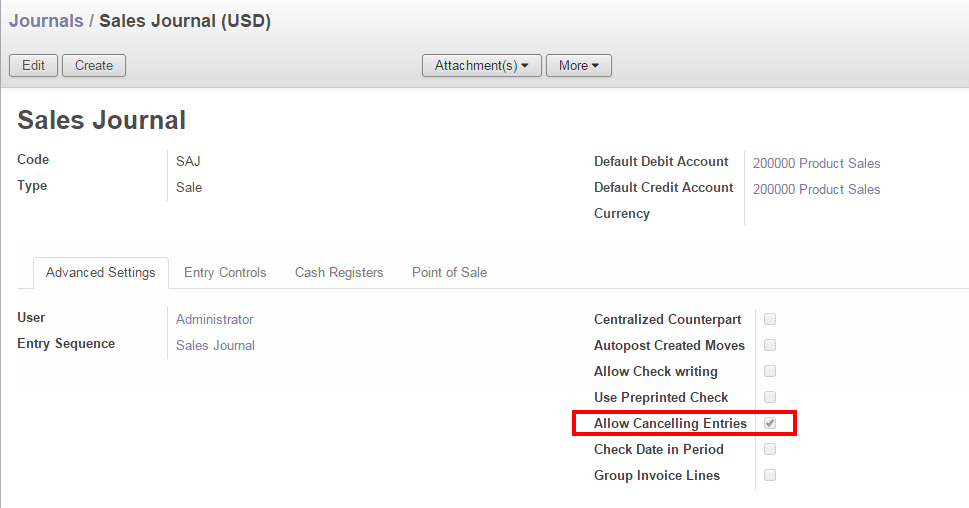
Check the checkbox “Allow Cancelling Entries”
Go to->> Accounting ->> Configurations ->> Journals->> Open “Sales Journal” record ->> Click “Edit” button ->> Check the checkbox “Allow Cancelling Entries” ->> save the record.
This setting will allow user to cancel the invoice.
For Example ->> Sales Journal
Flow for cancelling an invoice:-
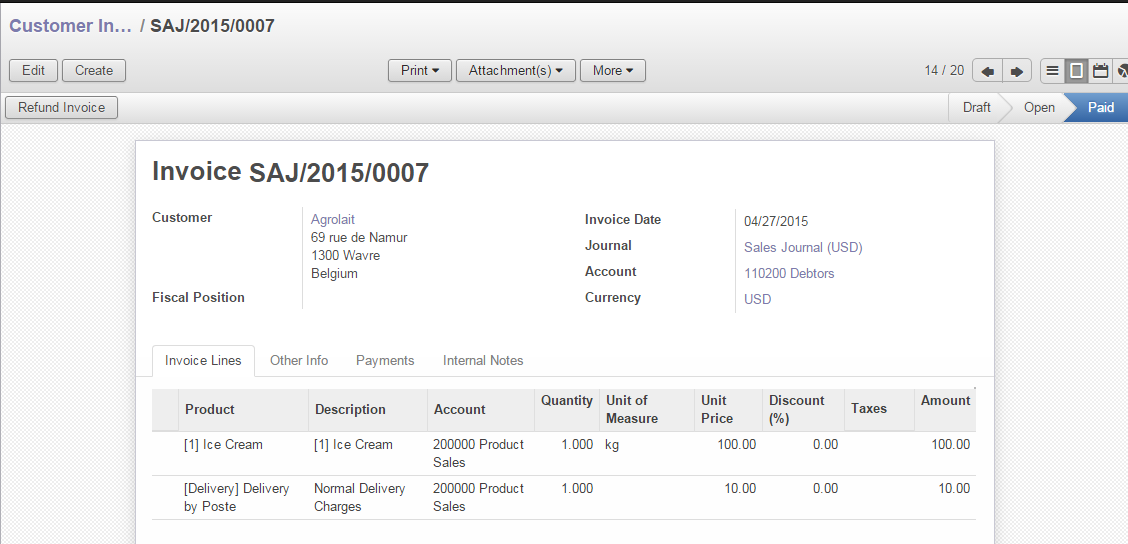
Step-1:- Go to ->> Accounting ->> Customer Invoices ->> Select & Open an invoice which is in paid state
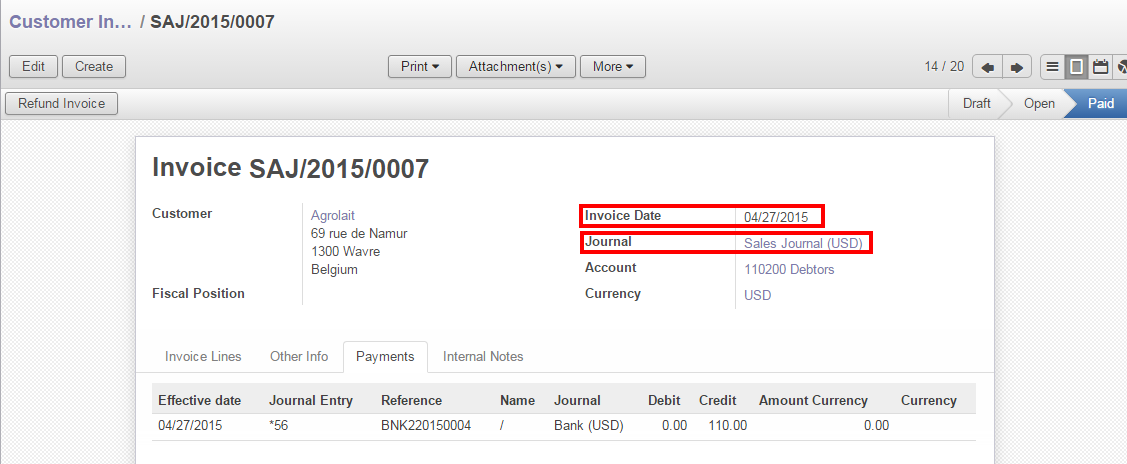
Step-2:- Make a note of Journal, Date & the Entry number.
Step-3:- Go to ->> Accounting ->> Journal Entries ->> Journal Items ->> Select Date & Journal
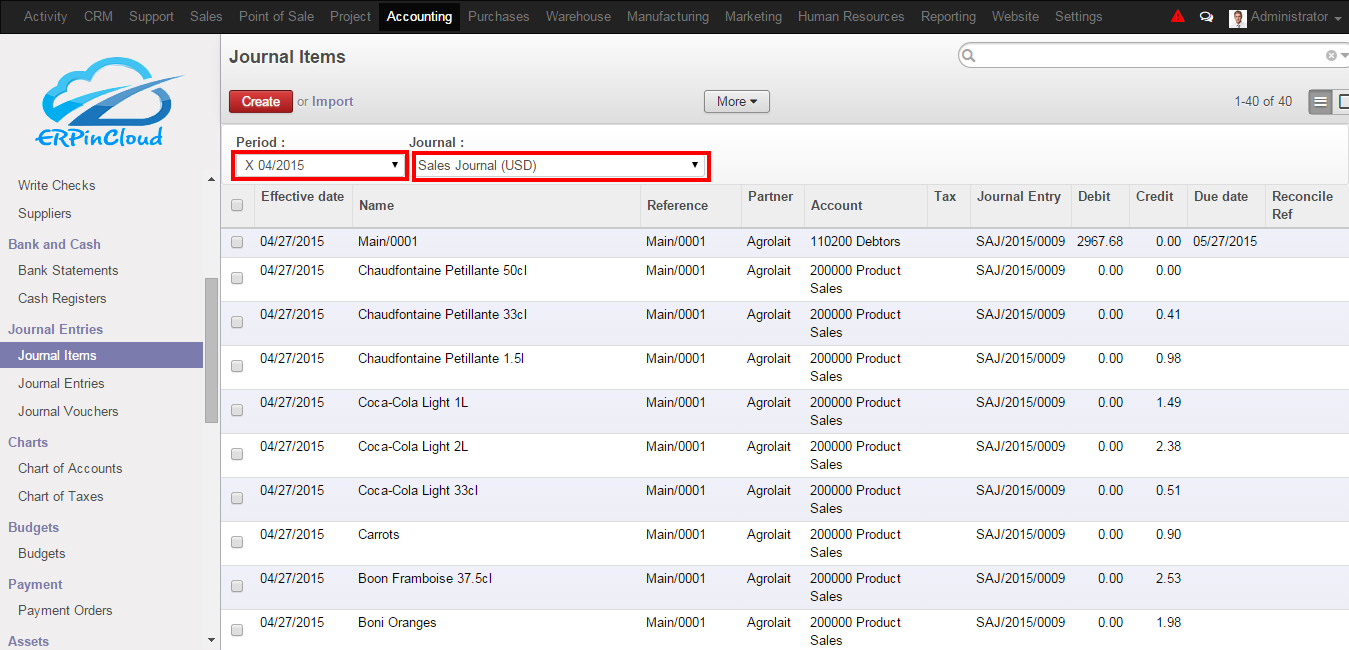
Select the Journal Items related to Invoice (SAJ/2015/0007) ->> More ->> Un-Reconcile
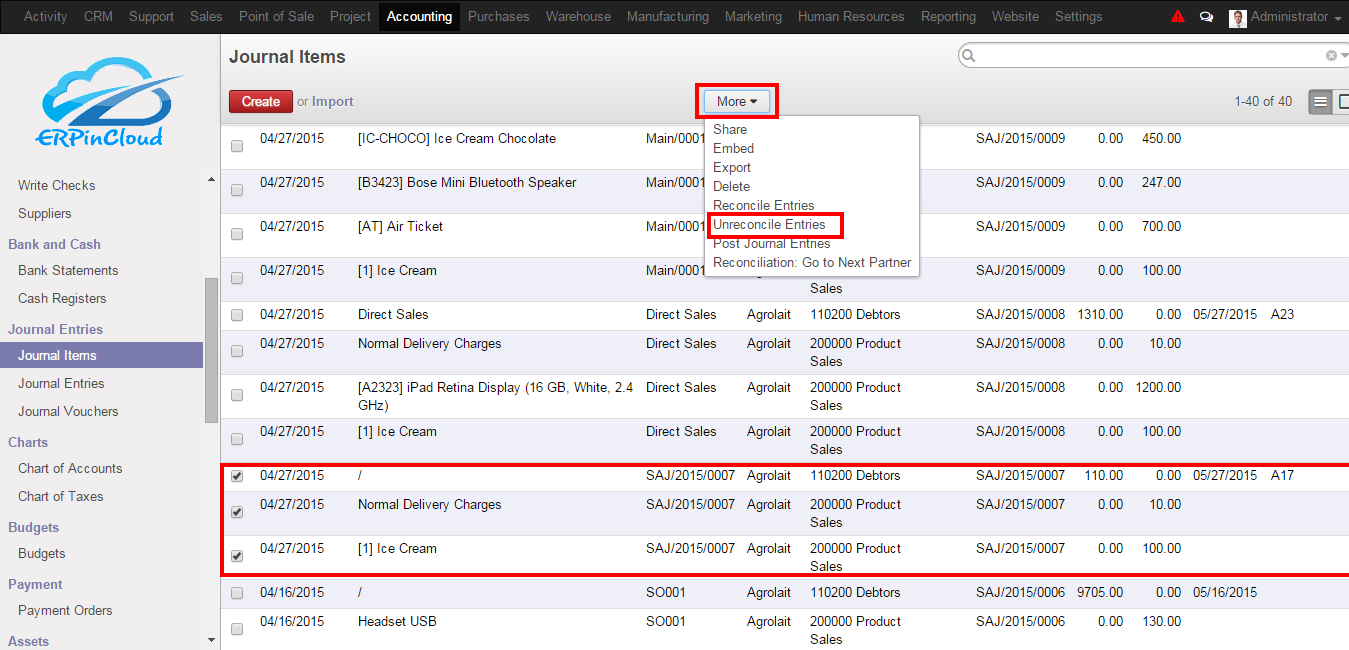
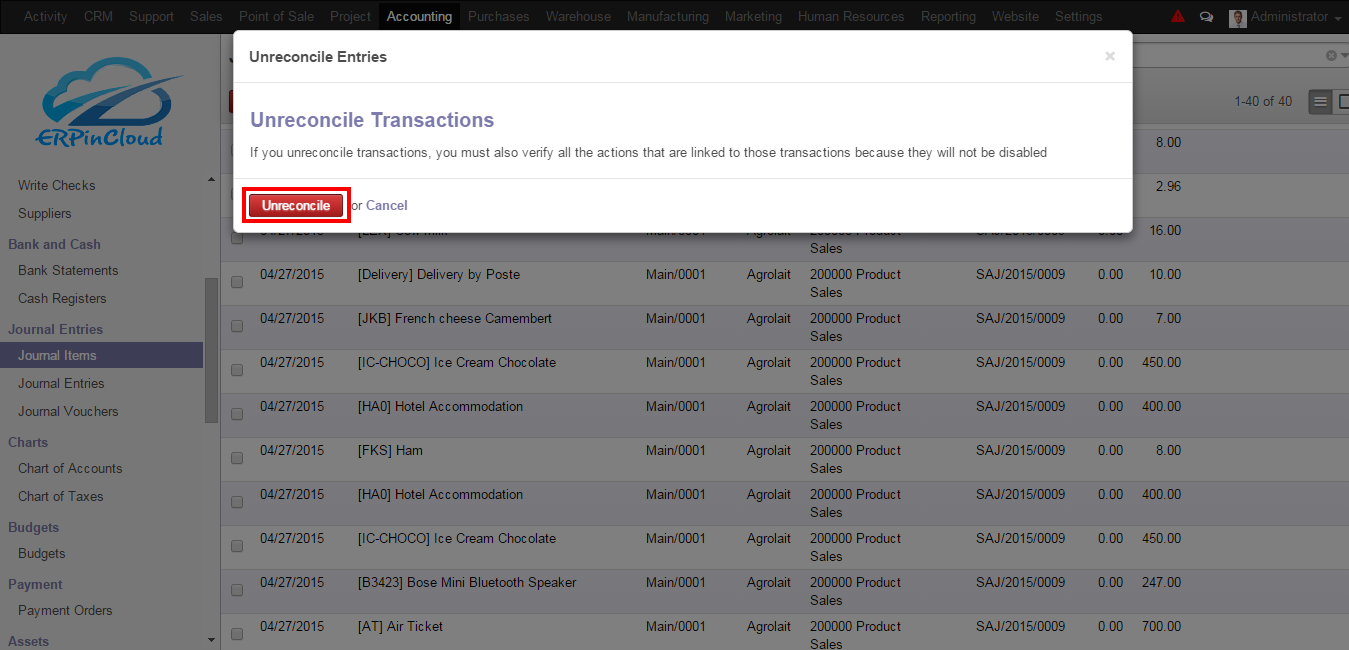
Click on Unreconcile
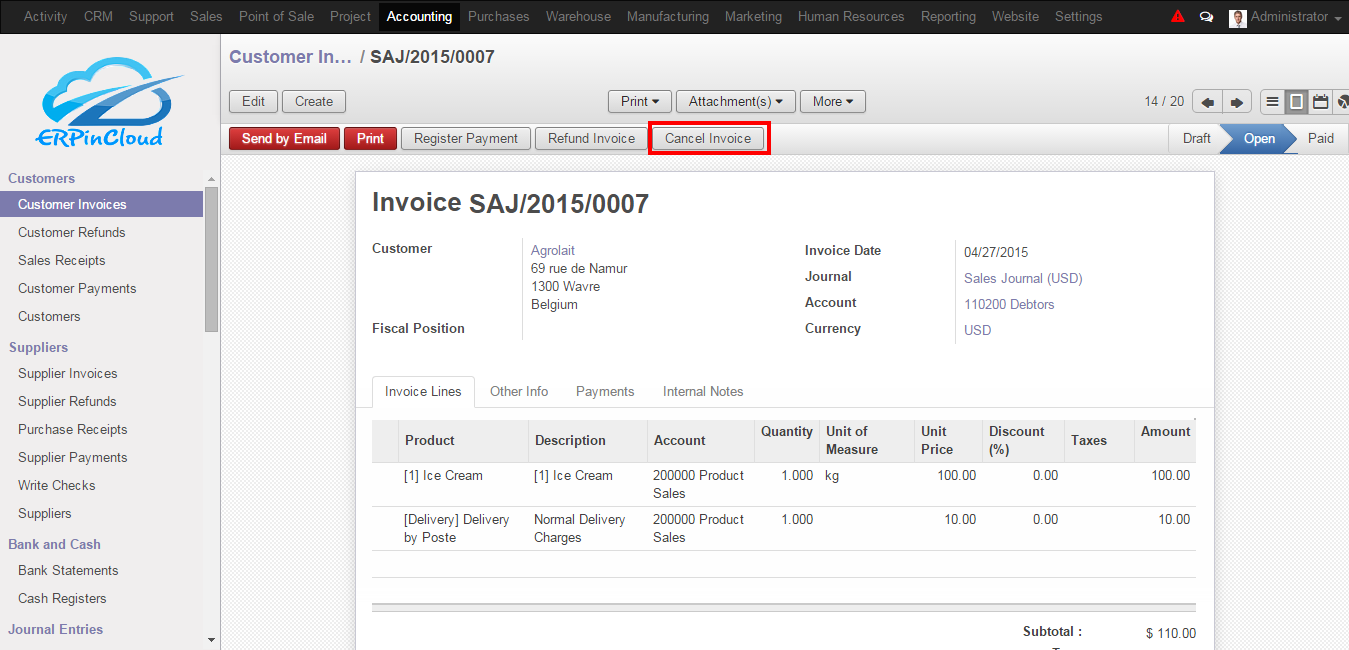
Step-4:- The status of an invoice will get change to “open” & click on the “Cancel Invoice”
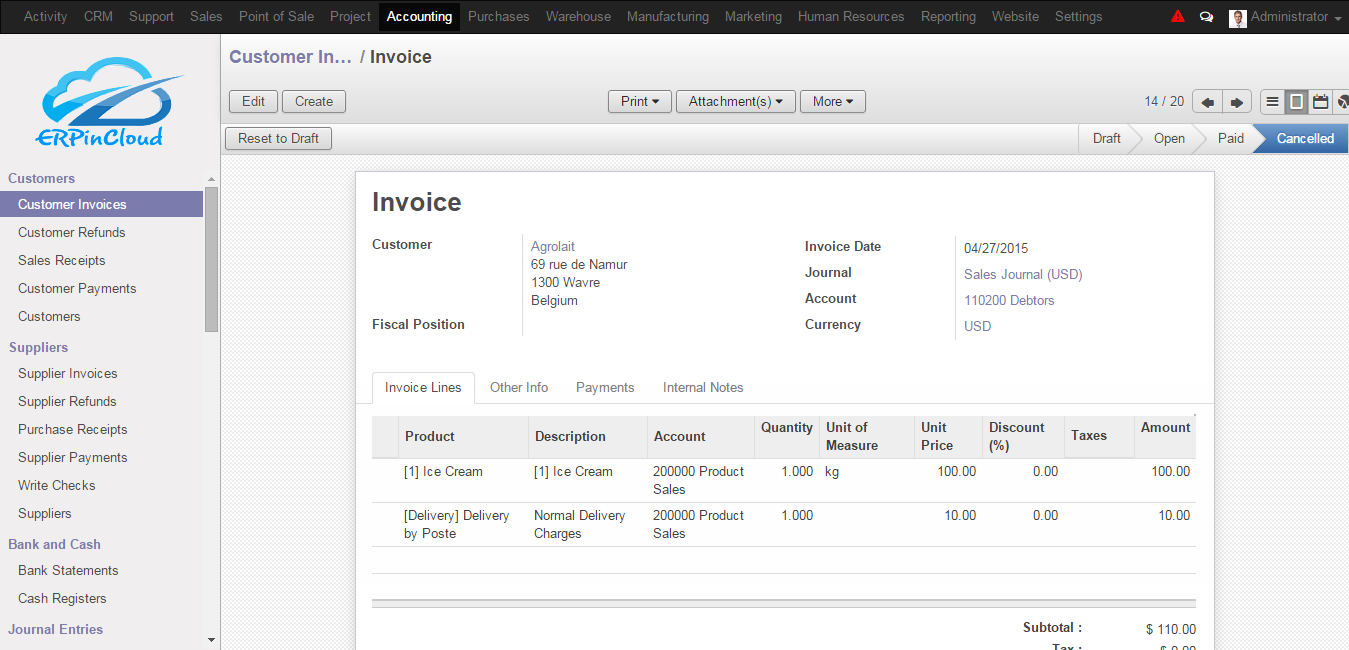
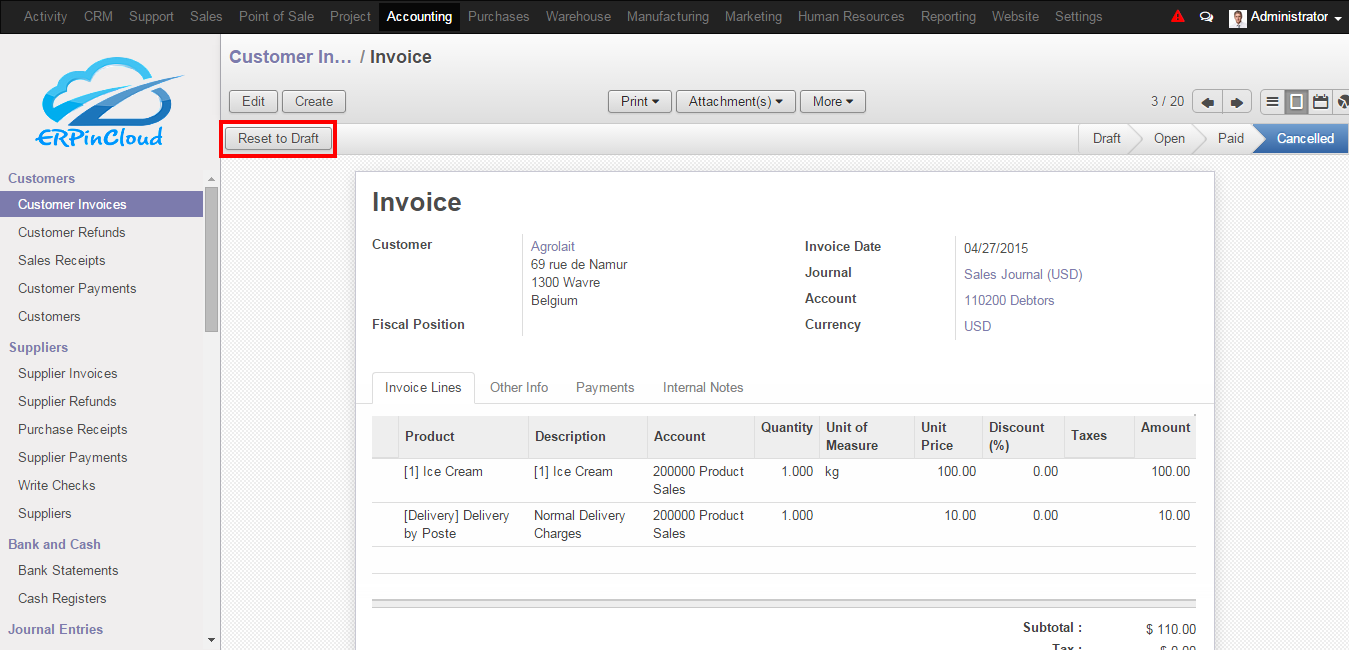
Step 5:- Once you click on “Cancel Invoice” the invoice status will become “Cancelled” now and it will show “Set to Draft” button. By clicking on “Set to draft” button you can edit the Invoice as a fresh invoice.
Signup for Free Trial of world’s best Cloud ERP Software ERPinCloud


No Responses to “How to Un-reconcile and Cancel a Paid Invoice in ERP”